This is the long version. It walks through everything SolGlow does — from the first screen you see to the widgets, the Apple Watch app and the Siri phrases — in the order a new user meets it. Every screen name, button and setting is written the way it appears in the app, so you can follow along with your phone in your other hand. Where a feature is part of SolGlow Pro it is marked Pro; everything else is Free.
Written for SolGlow 1.9 · Last updated: 09/16/2026
The one thing to know before anything else. SolGlow estimates the vitamin D you make from sunlight using published physiology, your Apple Watch's Time in Daylight, your skin type and the sun overhead. It is an educational tool, not a medical device and not a blood test. Anything it tells you about your level, your goal or your supplements is a model's estimate — always check with your clinician before changing what you take.
Contents
- Before you start — what you need, and what's free
- First launch: disclaimer, bringing your history, setting up your profile
- Getting around: the five tabs
- The Dashboard, card by card
- Sun sessions and Direct Sun
- UV-lamp sessions
- Winter: Winter Mode, Hold the Line and Winter Head-Start
- The Forecast tab
- The Plan tab: Annual Plan and Trip Planner
- The History tab: the calendar, day detail and Sessions
- The Profile tab: every setting
- Blood tests, serum calibration and the Doctor Report
- Backup & Restore, and importing your history
- Widgets, Lock Screen, StandBy, Apple Watch and Siri
- When something looks wrong
- Free and Pro at a glance
- Safety and the fine print
1. Before you start
What you need
- An iPhone on iOS 17.2 or later. That is the whole requirement for the app itself.
- An Apple Watch on watchOS 10 or later — for automatic tracking. SolGlow's headline trick is crediting your sunlight without you logging anything, and it does that from the Watch's Time in Daylight measurement, which reaches the phone through Apple Health. No Watch means Apple Health has no daylight data, and the automatic number stays at zero. You can still use the UV forecast and the plans, and log days by hand on Pro — see When something looks wrong.
- Location. The sun's angle, the UV forecast and everything seasonal depend on your latitude. While-using-the-app is enough; Always is optional and only matters if you travel.
- Nothing else. No account, no sign-up, no email. Your data lives on your phone; the only network call SolGlow makes is to fetch a UV forecast for your coordinates, with no identifier attached.
What's free, what's Pro, and the 14-day preview
When you finish setup, every feature is unlocked for 14 days. SolGlow calls this the preview: a banner at the top of the Dashboard counts the days down, and when it ends the app keeps working on the free tier — nothing is deleted, and nothing was charged, because the preview is the app's own and not a subscription.
The free tier keeps today's tracking, every safety alert, Show the Work, and the Best Sun Window, Winter Countdown and Supplement Check-In widgets. SolGlow Pro adds the Forecast, Plan and History tabs, the serum estimate and Doctor Report, sun sessions with the Live Activity, Morning Light, the Vitamin D widget and the Apple Watch app. Pro is $9.99 a year or $19.99 once (the one-time unlock includes Family Sharing); the pricing section has the details, and section 16 lists every feature by tier.
2. First launch
Three screens stand between the icon and the Dashboard. None of them can be swiped away, but two of them can be skipped.
Step 1 — Medical DisclaimerFree
A full-screen page explaining that SolGlow provides estimates from published research formulas, is not a medical device, and is not a substitute for a blood test or a clinician; that estimates can differ from real blood levels for reasons the model can't see (genetics, absorption, medications, illness); and that you should talk to a doctor before starting, stopping or changing a supplement. It also states the privacy posture: health, location and food data stay on the device, and only your latitude and longitude — with no identifier — go out, to fetch the UV forecast. Tap I Understand. You can re-read it any time from Profile › About › Medical Disclaimer.
Step 2 — Bring Your HistoryFree
Titled Bring Your History, this screen asks "Already have daylight history?" If you've worn an Apple Watch for a while, or you're switching from another sun tracker, tap Yes, bring my history; if not, Start fresh instead jumps straight to profile setup.
- Import. SolGlow asks for Apple Health access and scans your Time in Daylight history. It reports "Found N days of history"; tap Import N days and those days appear in History immediately, so your streaks and averages start from real data rather than from zero.
- Anchor to your last blood test. If you have a recent 25(OH)D result, enter the Level (in ng/mL or nmol/L — there's a unit picker) and the Test date, then Save & continue. This is optional (Skip for now); you can add it later under Profile › Baseline Blood Level. With it, your serum projection starts from your real level instead of a profile assumption.
- Here's what came across. A checklist confirms what was imported (or that nothing was found yet — "it'll build as you go"), whether the blood-test baseline was saved, and that the skin-and-body questions are next. Tap Finish setup.
Step 3 — Set Up ProfileFree
A form titled Set Up Profile. Everything on it can be changed later from the Profile tab, but the more honest you are here, the better the first numbers will be.
- Permissions. Two rows. Apple Health — tap Connect; SolGlow asks to read Time in Daylight and to write vitamin D back to Health. When it's done the row reads Connected. Location — tap Allow; the row reads Granted. If you decline either, the app still runs, but estimates will be far less accurate and the row offers Open Settings.
- Default Outfit. "What do you typically wear outdoors?" Pick the closest preset. This sets how much skin is exposed, which scales every vitamin D estimate.
- Weekday Schedule. If your real week is covered up Monday to Friday and shorts on the weekend, turn on Use weekday schedule and set each day with its Change menu. Days left at Use default inherit the outfit above.
- Skin Type (Fitzpatrick Scale). Six swatches from Type I (always burns) to Type VI. This drives both the vitamin D rate and the burn-time limits, so be accurate rather than aspirational.
- Body. Age (synthesis efficiency falls with age — the form explains it), Body weight and Height, each with a unit picker, and a live BMI readout.
Tap Get Started. The 14-day preview begins the moment this sheet closes. If you skipped the permission rows, the Dashboard will ask for Health first and Location a few seconds later.
3. Getting around: the five tabs
| Tab | What it's for | Tier |
|---|---|---|
| Dashboard | Today, live, on one scrolling page: the sun right now, what you've made so far, sessions, food, supplements, winter status and your estimated level. | Free (individual cards vary) |
| Forecast | Today's best sun window, this week's sun plan and a 7-day UV outlook, all for your location. | Pro |
| Plan | The Annual Plan — which months make vitamin D at your latitude — and the Trip Planner for jet lag. | Pro |
| History | A calendar of every day, with day detail, hand-logging, and the list of sun and lamp sessions. | Pro |
| Profile | You: outfit, skin, body, goal, supplements, blood tests, notifications, Pro settings, backups and About. | Free (one Pro section) |
On the free tier the three Pro tabs show a locked card describing what they contain, with an Unlock SolGlow Pro button; nothing else changes.
4. The Dashboard, card by card
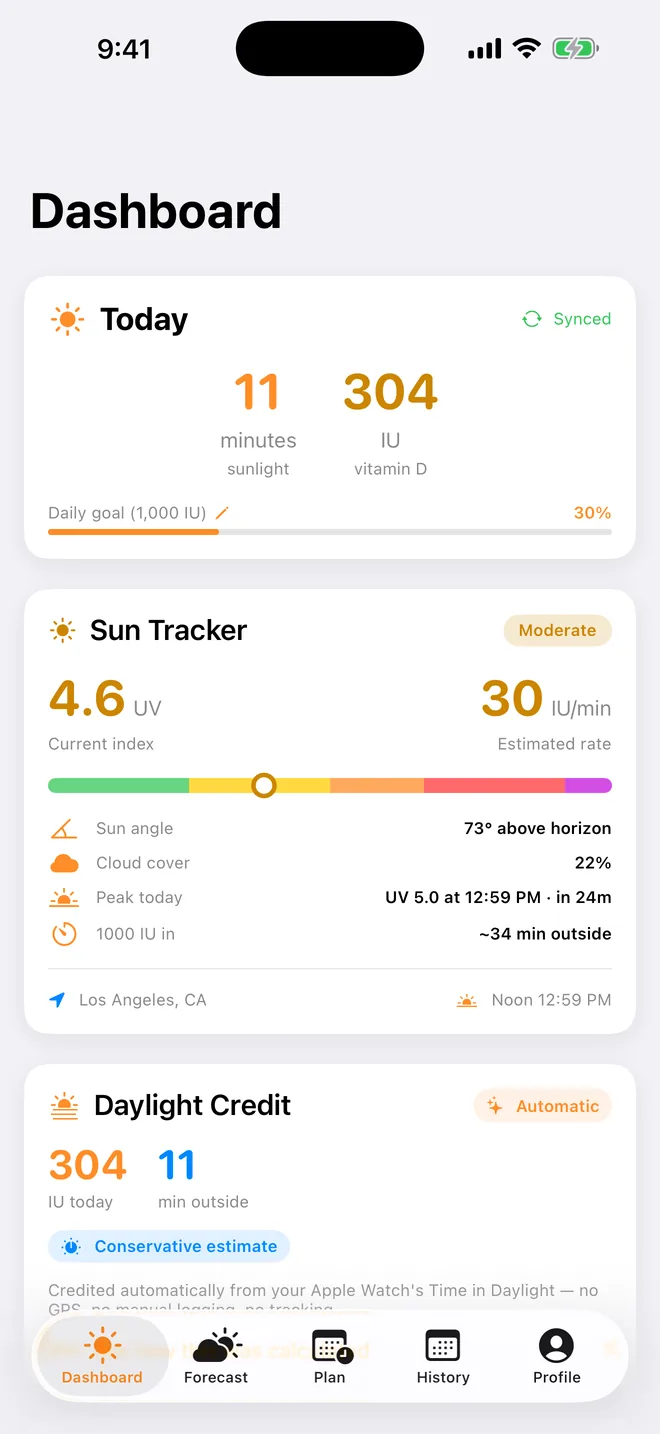
The Dashboard is a single scroll. Cards appear and disappear depending on the season, the time of day and what you've set up, so yours won't match this list exactly — this is the full set, in roughly the order they stack.
TodayFree
Two big numbers: minutes of sunlight today and the IU of vitamin D SolGlow estimates you made from it, with a progress bar toward your daily goal. A green Synced label means today's estimate has been written to Apple Health. In winter the bar notes that Winter Mode, above, is tracking your full goal — sun plus supplements, food and lamp.
To change your daily goal: tap the Daily goal line (the pencil icon). The Daily Goal sheet takes any value from 100 to 10,000 IU, or Use recommended resets it to the default for your life stage. Your goal overrides whatever the seasonal plan would otherwise suggest.
Sun TrackerFree
The sun as it is right now. The current UV index with a bucket chip (Low · Moderate · High · Very High · Extreme), your personal IU/min rate — how fast you'd make vitamin D if you stepped outside this minute in today's outfit — a UV scale bar, and four stats: Sun angle, Cloud cover, Peak today (the UV and the time, and how far away it is) and 1000 IU in (how many minutes outside that would take). The footer shows the place the forecast is for and today's solar noon.
Two captions are worth knowing. "Sun is too low right now for meaningful vitamin D production" means exactly that — early morning, evening, or winter. "Clear-sky estimate — no live forecast" means you're offline and SolGlow is assuming a cloudless sky, so real UV may be lower.
Sky looks clear? Forecasts are sometimes wrong about clouds. If you're standing under a clear sky and the card is quoting a cloudy UV, tap Tell SolGlow at the bottom of the card. A dialog asks "Sky looks clear right now?" and offers Yes — for the next 30 min or 60 min. For that window SolGlow uses the UV your sun angle allows instead of the forecast, the chip changes to Clear-sky · your report with a countdown, and — this is the point — your burn time gets shorter to match. The override can only make the app more careful, never less; your IU rate doesn't change, and you can Cancel it any time.
Daylight Credit, and "See how this was calculated"Free
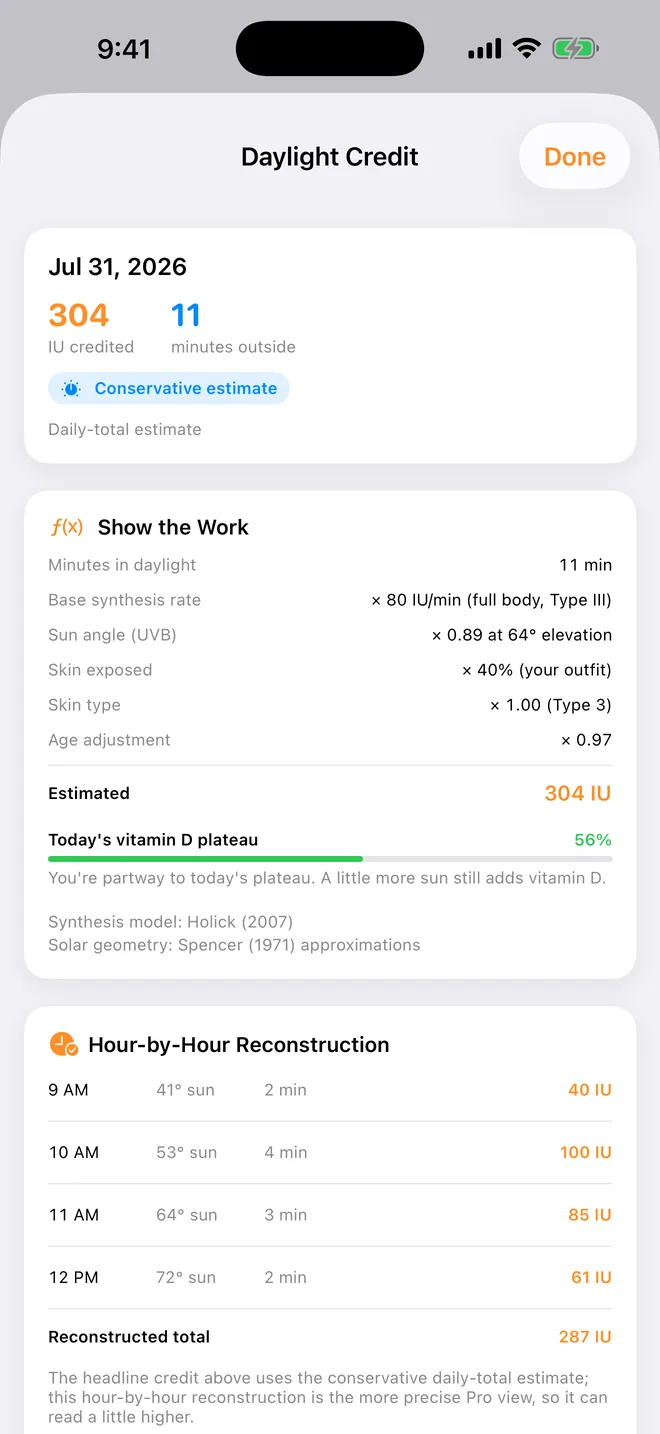
This card appears once Apple Health is connected and your Watch has recorded daylight today. It shows the IU credited today and the minutes outside, an Automatic chip, and a confidence chip — usually Conservative estimate, because the daily-total method deliberately rounds down. The caption says how: credited automatically from your Apple Watch's Time in Daylight — no GPS, no manual logging, no tracking.
Tap See how this was calculated and the Daylight Credit sheet opens with a Show the Work panel: minutes in daylight, × your base synthesis rate, × the sun-angle factor, × the skin you had exposed, × your skin type, × the age adjustment, = the estimate — with the studies it comes from named at the bottom. Today's vitamin D plateau shows how far you are toward the point where more sun stops adding much. Below it, on Pro, Hour-by-Hour Reconstruction re-runs the same math hour by hour at each hour's real sun angle, which is why its total is usually a little higher than the conservative headline.
Show the Work is everywhere. The same panel sits behind the burn warning, the day detail in History, the serum estimate and the Winter Mode physics. If a number surprises you, look for the button before you doubt it.
Burn warning and cumulative burnFree
When today's UV and your skin type make sunburn a real possibility, a burn card sits near the top: the risk level, Type N, how many of your safe minutes today's outdoor time represents, a progress bar, and a recommendation. On quieter days it's replaced by a cumulative burn card that tracks the last several days together, because skin remembers. Both use today's peak UV and your Fitzpatrick type as the worst case; sunscreen, clothing and shade all extend the real safe time. Show the Work opens the arithmetic.
Burn math has one deliberate bias: it refuses to believe clouds remove more than half of the clear-sky UV at your sun angle. A wrong cloud forecast can therefore make the app more cautious, never less. You can turn warnings off in Profile › Burn Warnings, but SolGlow makes you read and acknowledge a disclosure first.
Deficiency RiskFree
A 0–100 score with a level chip and a row per factor — latitude and season, skin type, age, outfit, intake — each marked as pushing the score up or down. It's a screening-style summary of your profile, not a diagnosis.
Food TrackerFree
Shows today's dietary vitamin D against the Dietary RDA for your life stage, and your last three entries. Tap Log to open the Food Tracker sheet:
- Tap to log — a list of high-vitamin-D foods with USDA values. Tap one, set Servings (½ to 10), and Log Now. Serving sizes are shown in the units your region uses.
- Your foods — foods you've added yourself. Tap Add a custom food, give it a name, the Vitamin D per serving (IU) from the label, and what one serving is (e.g. 100 g, 1 glass). Swipe left to delete a custom food; servings you already logged from it are kept.
- Today's Log — swipe left on an entry to remove it.
Diet counts toward your total intake and therefore toward the serum estimate and Winter Mode's goal. If you'd rather not log meals, enter a daily average instead under Profile › Supplements & Diet.
Daily IU Sources and the supplement check-inFree
One card that adds everything up — Sunlight, Supplements, Diet and, if you use one, UV lamp (est.) — into a single IU/day. Once you've set a daily supplement dose in Profile, a check-in row appears at the bottom: tap the circle when you've taken it and SolGlow keeps a check-in streak. The check-in is optional — your dose counts toward today either way — but tapping the row opens What your supplement is doing, a sheet with your habit history and, on Pro, a With it vs. without it chart of where your level would sit without the supplement.
Streak ShieldFree
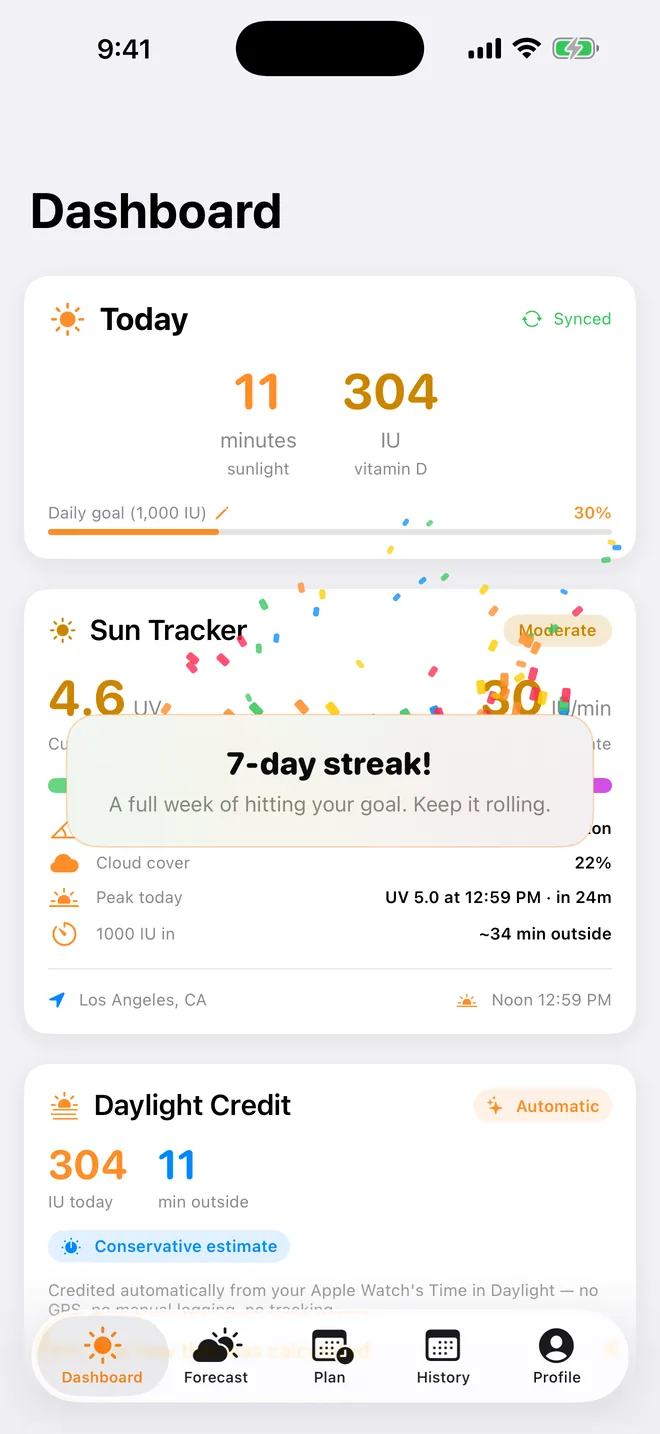
Hit your goal two days running and a streak hero appears: N-day streak · goal-met days in a row. The rule that makes it fair is the Streak Shield: a missed day is excused — the streak is frozen, not broken — only when the noon sun at your latitude sat below the angle at which UVB can make vitamin D. Physics excuses a day; clouds, travel and a closed app never do. Tap the shield line to read the explainer, Your streak is protected, with the earned days and excused days counted separately.
Celebrations. The first time each day your total intake reaches your goal, confetti fires. At 7, 30 and 100 days — and whenever you beat your best week — a share card is offered (A week in the sun, A month of sunlight, 100 days of sunlight, My best week yet) that you can send anywhere from the share sheet.
Week Plan ProgressPro
Seven rings, one per day, showing how each day did against its planned dose, with Goals met, IU From sun and today's percentage, plus a one-line nudge ("~120 IU more today keeps it alive"). Tap Share for the Weekly Recap — a My Week in the Sun card with your weekly IU, goals met, minutes outside, streak and sunniest day, and a Share your week button.
Estimated Serum LevelPro
The number most people install SolGlow for: an estimate of your 25(OH)D blood level in ng/mL, the level it's heading to at your current intake (→ N at steady state), roughly how long until you reach your target — or that you won't at this intake — a range bar, your total daily intake, supplement guidance, and a 12-week projection chart. The chip reads Est. from profile until a blood test anchors it, which is your cue to add one (section 12).
The Cofactor support row lets you log the nutrients that help vitamin D work — magnesium, vitamin K2, B12 and omega-3 — with a toggle for each you get most days; the serum guidance takes them into account. Tap the card itself for the Serum Level sheet: what the estimate is built from, the trajectory, Show the Work, what the levels mean, and the calibration row.
Morning Light and First-Light ConsistencyPro
Two cards about when you see daylight rather than how much. Morning Light tracks the first light of the day and whether you got 5–15 minutes of it within an hour of waking, which is the timing that anchors your body clock. First-Light Consistency shows the day-to-day drift of that first-light time as a ring (±N min) and the time you typically see it, from the last few weeks of mornings. Tap Morning Light for the detail sheet with the last N days and the science.
Cards you'll see once
- Get your first number — on day one, before any data: a short explanation of IU and where the first number will come from (your Watch, or a sun session).
- Tracking needs an Apple Watch / Health data unavailable — see section 15.
- Vitamin D testing — guidance on whether routine blood testing is recommended for your life stage, following the Endocrine Society's 2024 guideline. Dismiss it and it stays dismissed unless your life stage changes; the permanent copy lives under Profile › Baseline Blood Level.
- Your Year in the Sun is ready — each December (free), and Your Solstice Story is ready at the other quarters (Pro): a swipeable look back at your totals, streaks, sunniest days and, if you had one, the winter you held the line. Each ends with a share card.
5. Sun sessions and Direct SunPro
Automatic tracking credits your day after the Watch reports it. A sun session is for the moments you want the numbers live — a lunch break in the park, an afternoon at the beach — with an IU counter, a burn-safe countdown, and a Live Activity on your Lock Screen and in the Dynamic Island so you don't have to keep opening the app.
Starting a session
- On the Dashboard, tap Start sun session.
- On the Start Sun Session sheet, confirm What are you wearing? It defaults to today's outfit; change it if you've just taken your shirt off.
- Decide whether to turn on I'll be out in direct sun — see Direct Sun, below. Leave it off for a normal session.
- Tap Start. If you've set a sunscreen SPF in Profile, a reapply reminder is scheduled for about 80 minutes out and shown in the Live Activity.
The status page opens immediately. You can also start and end sessions with Siri — "Start a sun session in SolGlow", "End my sun session in SolGlow" — which uses today's profile outfit.
Direct Sun
Direct Sun is a display mode of the same session for the days you're not just outside but out in it. With I'll be out in direct sun on, the headline number becomes your burn budget: the share of today's burn threshold you've spent, for your skin type and the sun overhead. There are only two states — budget remaining, and stop. SolGlow shows what you've used; it never suggests how much longer to stay out, and it never estimates a tan. Sunscreen with the reapply timer running stretches the budget; nothing else does.
Two warnings can appear on the setup sheet when you switch it on: that your skin is still carrying sun from the last few days (consider a lighter day), or that you haven't had much sun in the last month, so your skin is at its least tolerant and the burn times assume exactly that. Read them as what they are — the model being cautious on your behalf.
SolGlow can't tell when you're actually burning. The budget is a model of a typical response for your skin type. Come in before the limit, especially on the first sunny days of the year.
While it's running
The status page (titled Sun session or Direct Sun) shows LIVE, when you started, elapsed time, the hero number — IU est. for a normal session, % of burn limit for Direct Sun — and rows for Burn limit in (a countdown, or Sunburn limit reached, or UV too low to burn), Reapply sunscreen in, and your skin type. The same numbers live in the Live Activity. Done closes the page and keeps the session running; on the Dashboard the button now reads End sun session with a red LIVE badge, and tapping it reopens the status page rather than ending anything.
Ending and reviewing
Tap End session on the status page and confirm End this session? — your time so far is saved. If the app was closed mid-session, the next launch shows a receipt of what was recovered. Every session is then listed under History › Sessions (section 10), where you can adjust its start time and duration; the IU is recalculated from the duration at that session's own rate.
6. UV-lamp sessionsFree to time · Pro to save
If you use a UVB lamp, SolGlow will time a session against the manufacturer's stated maximum and warn you when you reach it. Tap UV lamp session on the Dashboard.
- Your lamp. Pick a preset — each shows the maker's max session length and an estimated IU per full session — or Other UVB lamp and enter the name, max minutes and IU per session from your lamp's manual.
- Start session timer. A countdown to the stated max, a running IU estimate, and a Stop session button. At the limit the screen changes and a notification says Manufacturer limit reached — stop your session. Stopping early is always fine.
- Save session. When it finishes, saving the IU to your day is a Pro feature; free users can time and be warned, but the session is discarded. Log an earlier session (a day plus minutes, capped at your lamp's max) is Pro for the same reason.
Saved lamp sessions show in Daily IU Sources, in Winter Mode's maintenance total, in the day detail and in the Sessions list. SolGlow logs lamp time; it never prescribes it.
7. Winter
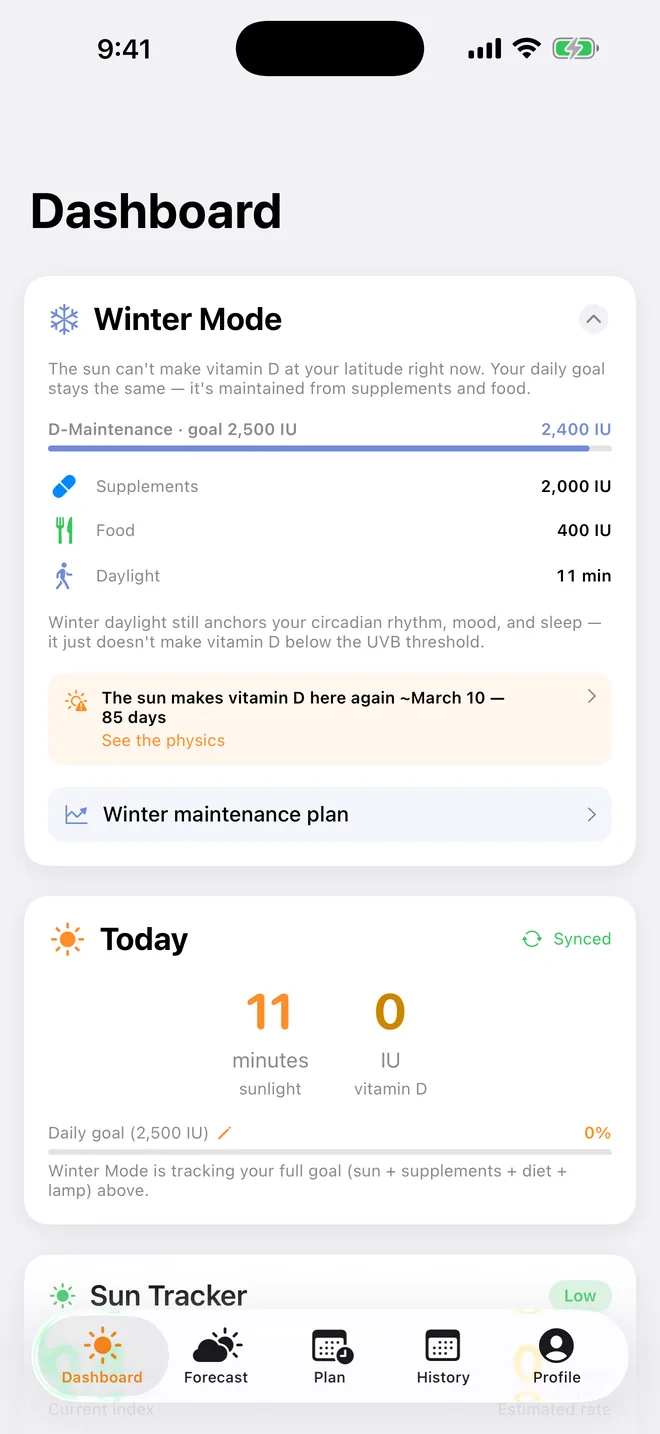
At most latitudes there is a stretch of the year when the noon sun never climbs high enough for its UVB to make vitamin D at all. Most sun apps go quiet then. SolGlow changes shape.
Winter ModeFree
When your latitude enters that stretch, a Winter Mode card takes the top of the Dashboard. It says so plainly — the sun can't make vitamin D at your latitude right now — and re-frames your daily goal as D-Maintenance: the same goal, now met from Supplements, Food, any weak winter sun and UV lamp sessions, with Daylight still shown because it anchors your body clock even when it makes no vitamin D. The card collapses to a single line, Sun returns in N days, and it counts down to the date the sun makes vitamin D at your latitude again. Tap See the physics for Winter Physics — Show the Work for the sun angle, where the UVB goes, and when it comes back. The Today card, streak and celebrations all switch to the full-intake goal for the season, and the free Winter Countdown widget and Watch complication show the same countdown — offline, with no forecast needed.
Winter maintenance planPro
The Winter maintenance plan row on the card opens a projection of your level through the whole winter at your current intake — Hold your level through the winter — with your winter intake and the figures from your Annual Plan, so you can see whether what you're taking is enough before the season proves it.
Hold the LinePro
If you had a blood test or a stable estimate going into winter, a weekly Hold the Line · Week N card compares this week's estimated level with what the winter-start model projected for this week, and says On track or Off track. Tap it for the checkpoint chart and the prediction on record.
The sun is backFree
When the sun returns, a card reminds you what SolGlow projected you'd be at today and suggests a 25(OH)D test now — Enter your test result jumps to Profile — so the model can be checked against reality and anchored to it. Once a qualifying test is in, the card shows Model vs your lab: the projection, your result, and the difference.
Winter Head-StartFree story · Pro plan
In late summer, if your summer reserves are projected to run below the sufficiency range before winter ends, a Winter Head-Start card appears (it was called September Head-Start before 1.9 — it always keyed off your latitude's seasons, and the new name works in both hemispheres). It tells you roughly what date your reserves carry you to. Plan ahead opens the story of your summer stores and the projected drawdown, and on Pro a Start before the drop plan. Dismissing the card hides it for the season. Everything here is an estimate from your intake and sun — not a measurement, and not medical advice.
8. The Forecast tabPro
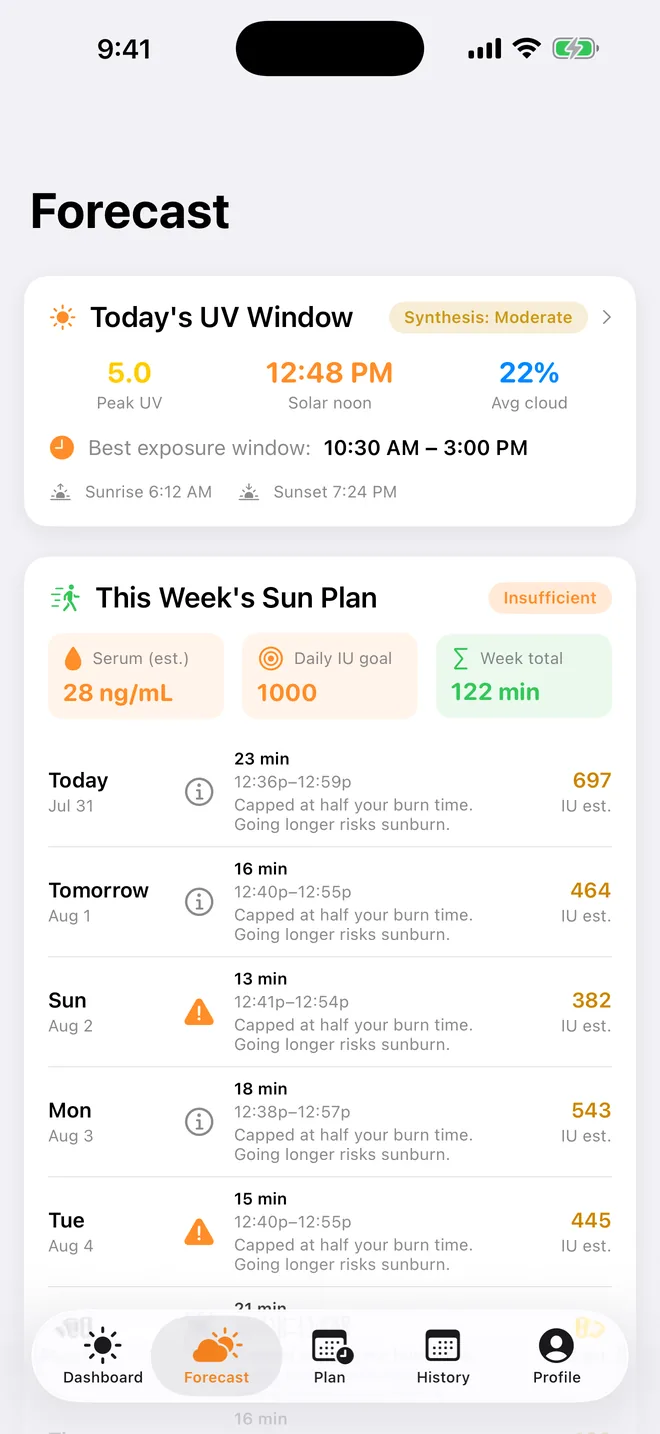
Everything about the sun that hasn't happened yet, for your location. Pull down to refresh.
- Today's UV Window. Peak UV, solar noon, average cloud, sunrise and sunset, and the best exposure window — the hours when UV is high enough for meaningful synthesis. If it never is, the card says so: UV stays below 3 today — minimal vitamin D synthesis. Tap for the day's detail.
- This Week's Sun Plan. Your estimated serum, daily IU goal and week total, then a row per day: how many minutes to spend outside, in which window, and the IU that should make — or Skip sun / Use supplement with the reason. Every day's minutes are capped at half your skin type's burn time at that day's peak UV; the plan is raised toward your goal but never past that cap. It needs a live forecast, so it's absent offline.
- Solar Timing. Solar noon, the best window, an Hourly UVB Efficiency chart, and your Personalized 1,000 IU dose — the minutes at solar noon it would take you, in today's outfit, to make 1,000 IU.
- 7-Day Outlook. A peak-UV chart and a row per day with its window, cloud cover and peak. Tap any day for the detail view: sun timing, the exposure window, hourly efficiency, your personalized dose, and Burn Risk — minutes to sunburn at that day's peak UV, with the same clear-sky floor the Dashboard uses.
Without location the tab shows a Location needed card with a Settings shortcut; offline, the today card falls back to a clear-sky estimate and the rest waits for a connection.
9. The Plan tabPro
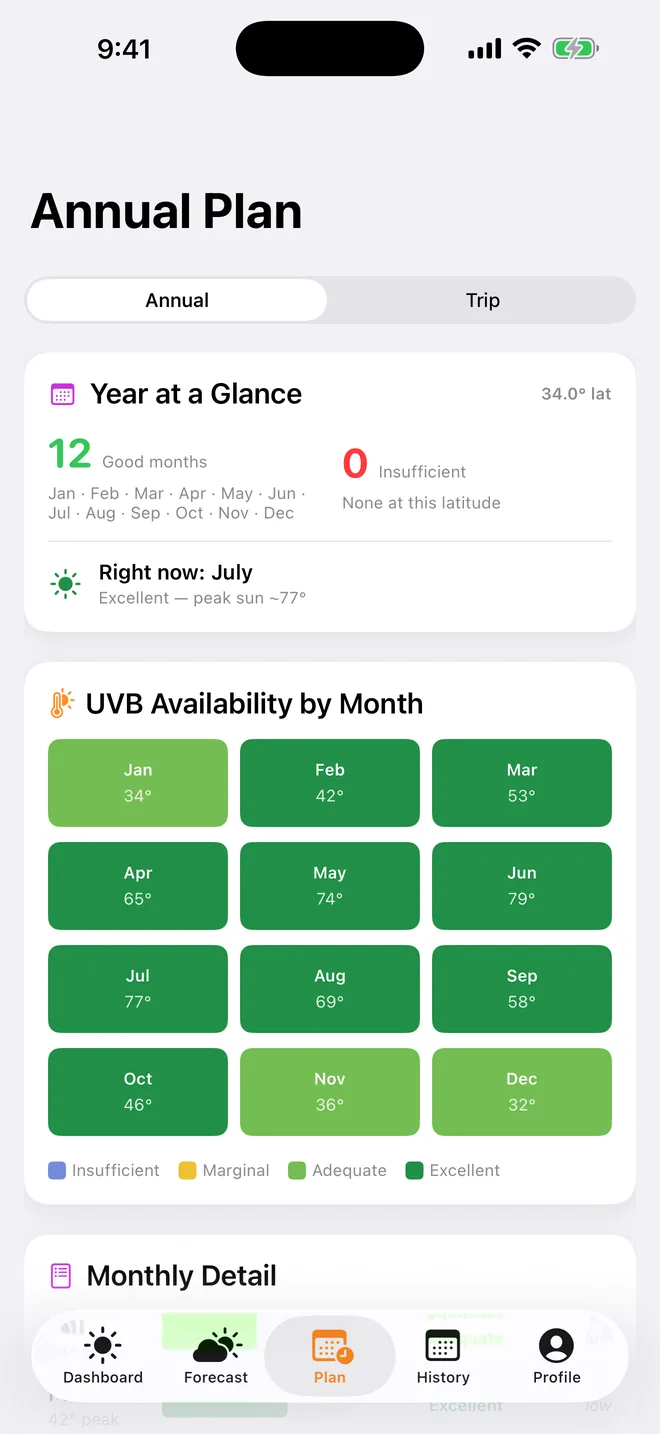
A segmented control at the top switches between Annual and Trip.
Annual Plan
Year at a Glance counts the good and insufficient months at your latitude and names where you are now. UVB Availability by Month is a twelve-cell heatmap — Insufficient · Marginal · Adequate · Excellent — with each month's peak sun angle. Monthly Detail expands each month, and General Supplement Ranges gives the typical intake ranges people use in insufficient-sun months versus adequate ones, under a Talk to your doctor banner: a 25(OH)D blood test is the only way to know where you actually are.
Trip Planner
Enter a City or place, an Arrival date, and your usual bedtime and wake time. SolGlow returns a Jet-Lag Plan — a day-by-day light-and-sleep schedule for shifting your body clock toward the destination, built on published circadian research — and a UV Outlook for the destination with its best sun windows. It's timing guidance, not medical advice; if the destination's time zone can't be resolved the planner says so.
10. The History tabPro
A month calendar with each day's IU in its cell, coloured by the share of your goal it reached (the legend under the calendar spells out the bands), and a shield glyph on days the Streak Shield excused. Arrows move between months and Jump to today comes back. Below, a Month Summary gives the average vitamin D, total sunlight, days with data, days that met the goal, and days excused. Pull down to re-read the last 60 days from Apple Health.
Day detail
Tap any day — including a past day with no data — for its detail: a Day Overview against that day's goal, a Show the Work card, any UV Lamp Sessions, the Clothing the day was scored with (change it here if you dressed differently), Vitamin D by Hour and Sunlight Exposure by Hour charts, the Sun's Path with the UVB-active hours marked, and Insights.
Edit Sunlight
The Edit Sunlight stepper sets a day's minutes outside from 0 to 4 hours in 5-minute steps, with Reset to return to what Apple Health recorded. Use it to correct a day the Watch under-recorded — a sleeve over the sensor, a Watch on the charger — or to log days by hand if you don't wear a Watch at all. Edited days carry an Edited badge.
Sessions
The Sessions card opens the list of every timed sun and lamp session, grouped by day, with badges for sessions that were Recovered after a crash or Logged by hand. Tap one to Review session: adjust the start time and drag the duration slider (1–240 minutes), and the IU updates from that session's own rate. Swipe left to delete; the IU it contributed to that day is removed.
11. The Profile tab: every setting
Top to bottom, as the tab is laid out.
| Section | What's in it |
|---|---|
| Default Outfit | The outfit every day is scored with unless the weekday schedule overrides it. |
| Weekday Schedule | Use weekday schedule toggle, then a Change menu per day. Use default inherits the outfit above. |
| Skin Type (Fitzpatrick Scale) | Types I–VI. Drives both the synthesis rate and every burn limit. |
| Display | Appearance — System, Light or Dark, overriding the iOS setting for SolGlow only. |
| Body | Age, body weight and height, each with its unit picker (this is also where you choose kg/lb and cm/in), and a live BMI. |
| Burn Warnings | The Sunburn warnings toggle. Turning it off opens Suppress Burn Warnings: a disclosure that UV exposure carries real medical risk and that the app has limits, an acknowledgement you must switch on, then Suppress Warnings. While suppressed the section shows the date and version you acknowledged. Turning warnings back on needs nothing. |
| Notifications | Enable notifications, then toggles for Sunburn limit warnings, Daily vitamin D goal met, Winter head-start, and — once you've set a dose — Daily supplement reminder with a Reminder time. SolGlow sends at most one coaching notification a day; safety alerts are never rate-limited. |
| Background Location | Always-allow location with Enable / Stop / Resume. Uses iOS significant-change monitoring (a fix only when you've moved a good distance), so battery cost is minimal; fixes are throttled, pruned after 60 days and never leave the device. Only worth it if you travel — it lets a morning in one city and an afternoon in another each get the right sun. |
| Daily Goal | The same Daily Goal sheet as the Today card. |
| Supplements & Diet | Daily supplement in IU (your usual D3 or multivitamin) and Daily diet (avg) in IU for days you don't log food. A typical diet provides roughly 150–250 IU. Setting a supplement dose is what turns on the check-in row and the reminder. |
| Baseline Blood Level | Blood test 25(OH)D with a ng/mL / nmol/L unit menu, the Test date, Clear baseline reading, and the testing-guidance row. Anchoring here is what turns the serum chip from Est. from profile into a calibrated estimate — see section 12. |
| Summary | Your current skin-exposure, vitamin D and age factors — the three multipliers Show the Work uses. |
| SolGlow Pro (features)Pro | Sunscreen SPF (None / 15 / 30 / 50 — used by sessions and burn math), Serum target (30–60 ng/mL, default 40), Life stage with its guidance, the cofactor toggles, Morning light reminder with a 5–10 AM time, Weekly recap reminder, Go-outside sun alerts, Re-test reminder (available once a test date exists), Doctor-ready report and the read-only Sun session log. Free users see one row, Unlock Pro features, describing all of it. |
| SolGlow Pro (purchase) | Your status — SolGlow Pro · Annual, SolGlow Pro · Founders for the one-time unlock, Free Preview with days remaining, or Preview Ended — with Unlock SolGlow Pro, Manage Subscription (annual only), Restore Purchases and the Terms of Use (EULA) link. |
| About | Version, Import History from Apple Health, Backup & Restore, Medical Disclaimer, Privacy Policy, Support and Rate SolGlow, with credits for the data sources (USDA, Open-Meteo) and the studies behind the model. |
12. Blood tests, serum calibration and the Doctor Report
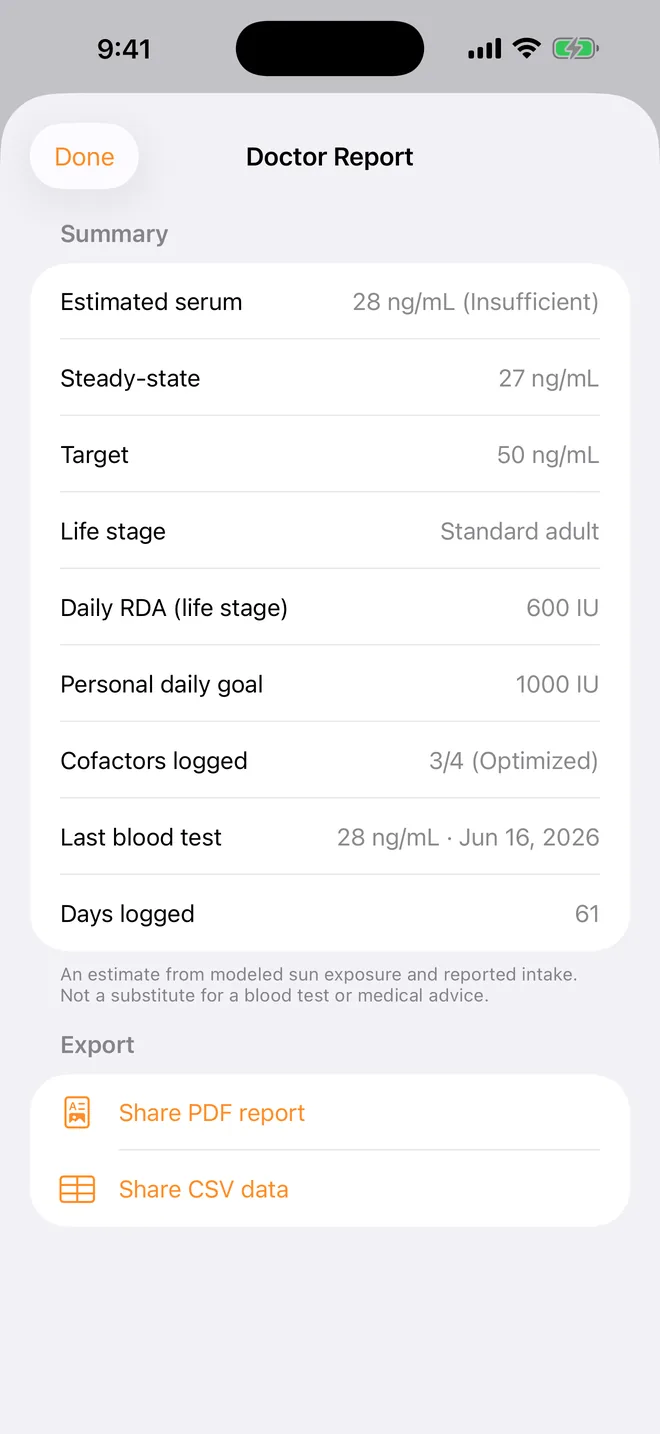
A serum estimate built only from your profile is a reasonable guess. One built from your last blood test is a calibrated one. SolGlow gives you three places to bring lab results in and one place to take them back out.
Baseline Blood LevelFree
The simplest anchor: one result and its date under Profile › Baseline Blood Level. Every projection starts from that point instead of from an assumed level.
Serum CalibrationPro
From the serum card, open the Serum Level sheet and tap Calibrate to your blood test. The Serum Calibration sheet keeps a Blood test log — tap Add, enter the Result with its unit, the Draw date and an optional label — and derives your response factor: how much your level actually moved per unit of intake, compared with the population model. Once it has enough to go on the estimate is marked Calibrated; the factor is capped so a single odd result can't swing it. Results stay on this device. This is the feature that makes SolGlow's number yours over time.
The Doctor ReportPro
Under Profile › SolGlow Pro, Doctor-ready report opens a one-page Summary — estimated serum, steady state, target, life stage, RDA, personal goal, cofactors logged, lamp use, last blood test and days logged — followed by Lab vs. model, which lines each of your blood draws up against what the model estimated for that date and states how well they agree and why. Share PDF report produces something you can hand to a clinician; Share CSV data exports the same numbers for a spreadsheet. The report says on its face that it's an estimate from modelled sun exposure and reported intake, not a substitute for a blood test.
13. Backup & Restore, and importing your historyFree
Because there's no account, SolGlow's data lives only on your phone. Two tools under Profile › About make sure that isn't a risk.
Backup & Restore
- Back up to a file. Optionally turn on Encrypt with a passphrase, tap Create backup file, then Share backup to save the
.solglowvaultfile anywhere you trust. To restore, Restore from a backup…, pick the file, enter the passphrase if you set one, and confirm Replace my data. - iCloud Backup. Back up to iCloud now, or turn on Back up to iCloud daily, optionally with Encrypt iCloud backups. This goes to your iCloud, never to us. Restore from iCloud… lists the backups it finds.
A device backup through iCloud Backup or the Finder also carries SolGlow's data to a new phone. Your Pro purchase is separate — it lives with your Apple ID and comes back with Restore Purchases.
Import History from Apple Health
The same importer you were offered at first launch. Tap Scan Apple Health; SolGlow reports how many days of Time in Daylight it found and Import N days brings them in, back to the month your Watch started recording. Run it again after switching phones, or if you skipped it the first time.
14. Widgets, Lock Screen, StandBy, Apple Watch and Siri
Home Screen and Lock Screen widgets
Long-press the Home Screen, tap the add button and search for SolGlow. Four widgets are offered:
| Widget | What it shows | Where it fits | Tier |
|---|---|---|---|
| Best Sun Window | Today's best window for vitamin D, the peak UV, and a state line — Good sun now, Best sun ahead, Window passed or No vitamin-D sun today. | Small Home Screen; Lock Screen rectangular, circular and inline; StandBy on your nightstand | Free |
| Winter Countdown | Days until your latitude makes vitamin D again. Works offline. | Small; Lock Screen rectangular, circular and inline | Free |
| Supplement Check-In | One tap marks today's supplement taken — without opening the app. | Small; Lock Screen rectangular and circular | Free |
| Vitamin D | Today's sun, IU and serum estimate at a glance. | Small and medium; Lock Screen rectangular, circular and inline | Pro |
| Sun Dashboard | Your whole vitamin-D day on one page: the day's sun curve, today's IU and minutes, the best window, a running session, and on Pro the serum estimate and last seven days. | Extra-large — iPad only | Free (Pro panels locked) |
On the free tier the Vitamin D widget shows SolGlow Pro · Tap to unlock; tapping any locked widget opens the app on the unlock screen. If a widget says Open SolGlow to refresh, do that — widgets read a snapshot the app writes, and they never present stale sun as live.
The Live Activity
Every sun session runs a Live Activity on the Lock Screen and in the Dynamic Island: the live IU counter, the burn-safe countdown, and the sunscreen reapply timer — with an I reapplied action on the reminder notification that restarts it. In Direct Sun the budget leads. Pro.
Apple WatchPro
The SolGlow Watch app is a vertical stack of pages: today's progress toward your goal, your serum estimate, the forecast window, and — if you've set a dose — a supplement check-in you can tap from your wrist. Two complications are available from the watch-face editor: Vitamin D (today's sun, IU and serum; Pro) and Winter Countdown (free, works offline). On the free tier the app shows Open on iPhone to unlock.
Siri and Shortcuts
SolGlow answers these without opening the app (the first three groups are free):
- "How much sun did I get in SolGlow" · "Today's sun in SolGlow" — You've had N minutes of daylight today, making about N IU of vitamin D — toward your N IU goal.
- "What's my vitamin D level in SolGlow" — the serum estimate in ng/mL and its band, always followed by This is a model estimate, not a blood test.
- "When's the best sun in SolGlow" · "Best time for sun in SolGlow" — today's best window.
- "I took my vitamin D in SolGlow" · "Mark my supplement taken in SolGlow" — logs today's check-in.
- "Log a food in SolGlow" · "Add a food to SolGlow" — logs a serving.
- "Start a sun session in SolGlow" · "I'm going outside in SolGlow" / "End my sun session in SolGlow" · "I'm going inside in SolGlow" — Pro; these open the app to start or end the session.
All of them are also available as actions in the Shortcuts app. If Siri answers Open SolGlow to refresh your sun data, then ask again, the snapshot is stale — open the app once.
15. When something looks wrong
"Tracking needs an Apple Watch"
Apple Health is connected and SolGlow looked, but there is no Time in Daylight data. Either you don't wear an Apple Watch (the measurement comes from its ambient-light sensor, on watchOS 10 or later), or you do and SolGlow's daylight access is off. Check Health app › Sharing › Apps › SolGlow and make sure Time in Daylight is allowed; the card's Open Health button takes you there. Without a Watch, automatic tracking stays at zero, but the forecast, the plans, sessions, food and supplements all still work, and on Pro you can log days by hand from History › any day › Edit Sunlight.
"Health data unavailable"
SolGlow couldn't read Health at all. Health access isn't in SolGlow's iOS Settings page — it's in the Health app under Sharing › Apps › SolGlow. If your phone was just locked, the error clears on its own.
The Sun Tracker shows dashes and "Turn on location to see live UV"
Location is off or denied. Without it there's no UV forecast, no sun angle, no Winter Mode and no vitamin D written to Health. Settings › Privacy & Security › Location Services › SolGlow — While Using the App is enough.
"Clear-sky estimate — no live forecast"
You're offline, or the forecast service can't be reached. SolGlow assumes a cloudless sky (so real UV may be lower), the weekly plan and outlook wait for a connection, and the Best Sun widget marks its UV with a tilde or (est.).
My number changed when I updated
Since 1.7, SolGlow corrects the UV Index for ozone — vitamin-D UV isn't the same as sunburn UV — so estimates for high-ozone days came down a little. The Dashboard shows a one-time note, Your numbers just got more accurate, and Show the Work now has the ozone step in it.
A widget or Siri is showing yesterday
Both read a snapshot the app writes. Open SolGlow once and they refresh; they'll say Open SolGlow to refresh rather than show old data as live.
My preview ended and the tabs are locked
That's the free tier: Forecast, Plan and History show a locked card, the serum and week-plan cards do too, and the sun-session button is gone. Everything you recorded is still there, and unlocking Pro brings it all back. Already paid on another device? Profile › Restore Purchases.
Still stuck?
The support page has the FAQ, and support@twisteddatastudios.com reaches a person. Include your iOS version, Watch model if you have one, and the SolGlow version from Profile › About.
16. Free and Pro at a glance
| Feature | Free | Pro |
|---|---|---|
| Today card, daily goal, celebrations and streaks with the Streak Shield | ✓ | ✓ |
| Sun Tracker with live UV, personal IU/min and the "Sky looks clear?" override | ✓ | ✓ |
| Automatic Daylight Credit from Apple Watch, with Show the Work | ✓ | ✓ + hour-by-hour reconstruction |
| Burn warnings, cumulative burn and Deficiency Risk | ✓ | ✓ |
| Food Tracker incl. custom foods; Daily IU Sources; supplement check-in | ✓ | ✓ + with-vs-without chart |
| Winter Mode, Winter Physics, the spring check and the Winter Head-Start story | ✓ | ✓ + maintenance plan, Hold the Line, head-start plan |
| Year in the Sun (December) / Solstice Stories (quarterly) | December | All four |
| UV-lamp session timer and limit warning | ✓ | ✓ + saving and back-logging sessions |
| Sun sessions, Direct Sun and the Live Activity | — | ✓ |
| Morning Light and First-Light Consistency | — | ✓ |
| Week Plan Progress and the Weekly Recap | — | ✓ |
| Estimated Serum Level, cofactors, Serum Calibration, Doctor Report | — | ✓ |
| Forecast tab (UV window, week plan, 7-day outlook) | — | ✓ |
| Plan tab (Annual Plan, Trip Planner) | — | ✓ |
| History tab (calendar, day detail, Edit Sunlight, Sessions) | — | ✓ |
| Profile: sunscreen SPF, serum target, life stage, reminders and alerts | — | ✓ |
| Best Sun Window, Winter Countdown and Supplement Check-In widgets | ✓ | ✓ |
| Vitamin D widget and complication; Apple Watch app | — | ✓ |
| Backup & Restore (file and iCloud), Import History, Siri read-outs | ✓ | ✓ |
Pro is $9.99 a year, auto-renewing until you cancel, or $19.99 once with Family Sharing included on the one-time unlock. Every feature is unlocked for your first 14 days. Details on the SolGlow page.
17. Safety and the fine print
SolGlow's estimates are educational, not medical advice, and they are not a diagnosis. The serum number is a model, not a blood test; the burn budget is a model of a typical response for your skin type, and the app cannot tell when you are actually burning. Direct Sun never recommends more time in the sun and never estimates a tan. Supplement ranges are general; the right dose for you is a conversation with your clinician, ideally with a 25(OH)D test in hand.
Your data stays on your device unless you back it up to your own iCloud or share a report yourself. The only thing that leaves the phone otherwise is your latitude and longitude, with no identifier, to fetch the UV forecast. The full privacy policy and terms are a tap away, and the support page covers the questions this guide doesn't.